How to Set Up Two-Factor Authentication for FOVU Report
Jul 09, 2026
Two-Factor Authentication (2FA) is now required for all FOVU Report logins.
That means after you enter your email address and password, you'll also be asked to enter a 6-digit code. If you already use authenticator apps for other accounts, you'll know exactly what to do. If this is new to you, keep reading and we'll walk you through it.
What's changed
When you log in to FOVU Report, you'll now:
- Enter your email address and password
- Enter a 6-digit code from an authenticator app on your phone
Both steps are required to access your account.
Why we've introduced this
FOVU Report holds sensitive data that needs to be protected properly, and we take that responsibility seriously.
2FA adds a second layer of security. So even if someone got hold of your password, they still couldn't get into your account without the code from your phone.
What is an authenticator app?
It's a free app on your phone that generates a time-limited 6-digit code. Two good options are:
- Google Authenticator — available on the Apple App Store and Google Play
- Microsoft Authenticator — available on the Apple App Store and Google Play
Both work just as well on a tablet as a phone. Just make sure it's a device you'll have with you when you log in, since that's where your codes will be generated each time.
How to set it up (it takes about 2 minutes)
You will only need to set this up once.
- Open Google Play Store or Apple App Store on your phone
- Search “Authenticator”
- Install an authenticator app (Google or Microsoft both work fine)
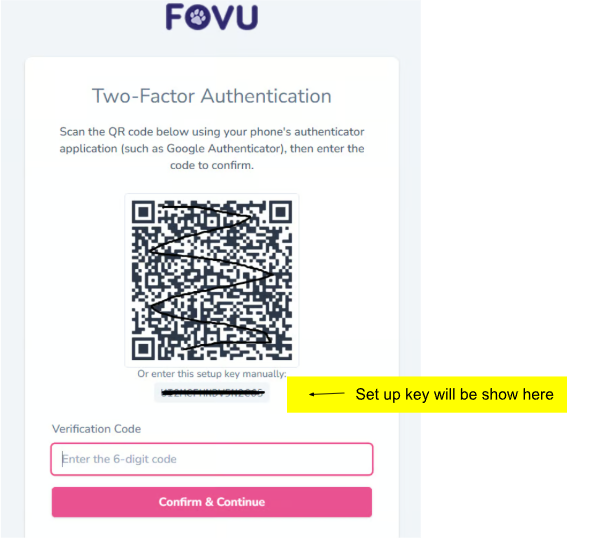
- On the FOVU Report login screen, either scan the QR code with your authenticator app, or enter the setup key manually
- Your authenticator app will generate a 6-digit code
- Enter that code into the Verification Code box
- Click Confirm & Continue
That's it, you're set up.
What happens next
Every time you log into FOVU Report after this, you will need your device which you installed the authenticator app.
- Open report.fovu.co.uk/login
- Fill in your email and password
- Open the authenticator app on your phone and find the number associated with FOVU Report login (the number changes every 30 seconds or so)
- Input this number when requested by FOVU Report.
Prefer a video walkthrough?
Here's a video that walks through the whole process step by step:
👉 Set Up Two-Factor Authentication on Your Phone (Easy Guide)
If you run into any trouble, just get in touch and we'll help you sort it.
Warmest wishes, Camilla & the FOVU Team